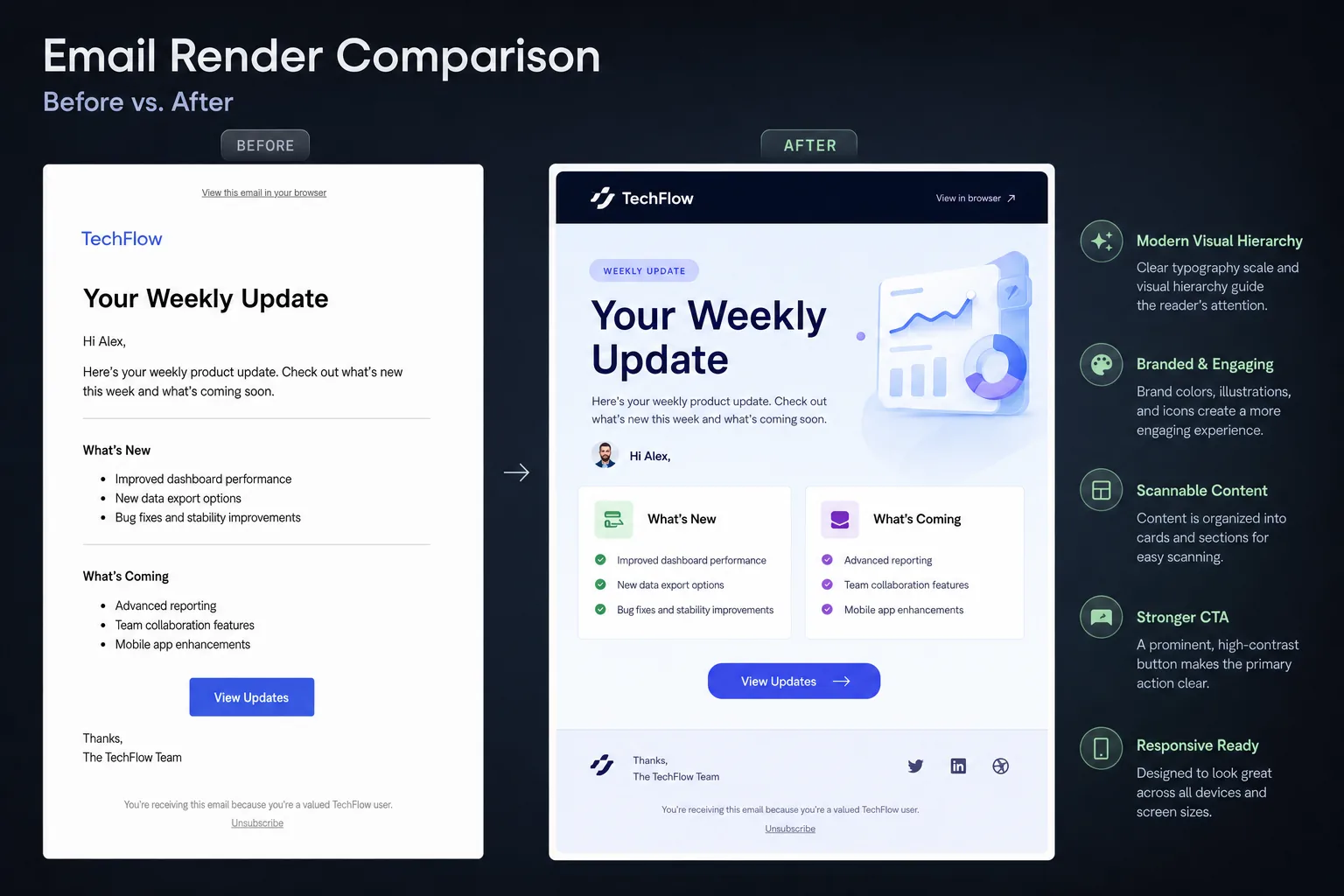
Outlook email rendering is one of the most persistent sources of production surprises for email marketers, CRM teams, lifecycle marketers, and email designers. A campaign can look polished in a browser preview, pass a quick mobile check, and still arrive in Outlook with oversized images, unexpected gaps, inconsistent fonts, or dark mode colors that undermine readability.
The challenge is not that Outlook is one client. It is a family of rendering environments. Desktop Outlook for Windows has historically used Microsoft Word as its rendering engine, which means it handles HTML and CSS differently from browser-based clients. Outlook.com, newer Outlook experiences, and mobile Outlook apps behave differently again. A fix that works in webmail may not resolve a desktop Outlook issue, and a layout that survives desktop Outlook may still need refinement for dark mode or responsive behavior elsewhere.
See also: birthday email examples
For production teams, the goal is not to make every client render identically. The goal is to make every version usable, readable, on-brand enough, and conversion-ready. Start with the most visible failures, isolate the likely cause, then apply conservative HTML email techniques that are known to hold up in Outlook.
Why Outlook rendering breaks differently from other email clients
Most Outlook issues come from a mismatch between modern email design expectations and the rendering rules used by different Outlook environments. Designers often build with responsive layouts, CSS-based spacing, background colors, web fonts, rounded buttons, and carefully balanced image-to-text compositions. Desktop Outlook may ignore or reinterpret parts of that code, especially when it depends on CSS properties that work reliably in browser-like clients.
The most important distinction is between Word-based desktop Outlook and browser-based Outlook environments. Word-based rendering is less tolerant of modern CSS. It can treat margins unpredictably, add gaps around images, struggle with background images, alter line-height behavior, and ignore styles that are safe elsewhere. Outlook.com and mobile Outlook are generally more modern, but they introduce their own behavior around dark mode, image scaling, and CSS support.
Before changing code, map the symptom to the likely category:
- Images look too large, too small, or misaligned: check missing width attributes, fluid image CSS, linked image spacing, and table container dimensions.
- Unexpected gaps appear between modules: inspect margins, paragraph defaults, line-height, spacer rows, and table cell structure.
- Buttons or text blocks shift: review padding support, nested table construction, and whether CSS shorthand is being ignored.
- Fonts look off-brand or inconsistent: confirm fallback stacks, font-size declarations, line-height, and whether custom fonts are being replaced.
- Dark mode makes content hard to read: test background, text, border, logo, and icon color combinations in Outlook dark mode variants.
This diagnostic mindset is important for JQRD readers because campaign velocity often leaves little room for one-off rescue work. The more your template system anticipates Outlook-specific behavior, the fewer late-stage fixes your team needs during QA.
Broken images first: diagnosing image display, sizing, and alignment problems
Image problems are usually the first rendering issue stakeholders notice. Hero images may stretch beyond the email width, product images may collapse, icons may float out of alignment, and linked images may show unwanted white space underneath. In Outlook, these failures often come from relying on CSS alone for image dimensions or from leaving inline image behavior to the client.
Start with explicit dimensions. For fixed-width images, set the image width and height as HTML attributes where practical, then reinforce the intended behavior with inline CSS. In many email builds, the width attribute is more dependable in Outlook than CSS-only sizing. If an image should display at 600 pixels wide in a desktop layout, define that width clearly rather than expecting the client to infer it.
For responsive images, use a controlled approach. A common pattern is to define the actual image width attribute for desktop Outlook and use inline CSS such as max-width for clients that support scaling. The fallback should still look acceptable when max-width is not honored perfectly. Avoid uploading an oversized image and depending entirely on CSS to shrink it across every client.
To reduce gaps around linked images, set images to block-level display. Linked images are especially prone to small descender-space gaps because inline images can behave like text elements. Adding display:block to the image style often removes the visual gap. Also check that the surrounding table cell has the intended padding and line-height, rather than inheriting defaults.
Use table-based image containers when alignment matters. A centered logo, a two-column product grid, or a side-by-side icon-and-copy block should not depend on floats or modern layout methods. Place images in table cells with defined widths, alignment attributes where necessary, and inline styles. This may feel old-fashioned, but it remains one of the most stable approaches for Outlook email rendering.
Do not treat alt text as an afterthought. Outlook users may see blocked images by default depending on settings and organization policies. Alt text should identify the content or function of the image, not merely repeat a file name. For image-based headlines, sale banners, or CTA graphics, make sure the essential message also appears as live text elsewhere in the email. If the email cannot be understood when images are blocked, the design is too fragile.
Spacing and layout stability: controlling padding, margins, line height, and table structure
After image fixes, spacing is usually the next problem area. Outlook can add, remove, or reinterpret space in ways that make modules look uneven. The most common culprits are margins on paragraphs, unsupported CSS shorthand, inconsistent line-height handling, and table structures that depend on browser-like layout behavior.
For dependable email layouts, build spacing deliberately. Use nested tables for major structural blocks, table cell padding for internal spacing, and dedicated spacer cells or rows for vertical rhythm when necessary. While modern web design often discourages spacer elements, HTML email is constrained by client support. A predictable spacer row can be more reliable than a margin rule that disappears in Outlook.
Paragraph margins deserve special attention. Many email clients apply default margins to paragraph elements, and Outlook may handle those defaults differently from your preview environment. If you use paragraphs, define margin values explicitly inline or use table-cell spacing patterns that reduce reliance on paragraph margins. For tightly controlled modules, a paragraph with margin:0 can prevent unwanted gaps above and below copy.
Line-height should also be explicit. Set line-height in a unit that supports the design consistently, and test it in body copy, headings, disclaimers, and buttons. Outlook may render text with slightly different vertical metrics, so a line-height that feels balanced in a web preview can look cramped or loose in desktop Outlook. When in doubt, prioritize readability over pixel-perfect matching.
Be careful with CSS shorthand. Padding shorthand, margin shorthand, border shorthand, and background shorthand can be less reliable in some email contexts than individual properties. If a module is breaking in Outlook, simplify the CSS. Replace complex declarations with explicit top, right, bottom, and left values where needed. Remove unnecessary styles and confirm which declaration actually controls the visible result.
For multi-column sections, keep the table math clean. If a 600-pixel container holds two columns, account for column widths, padding, borders, and gutters. Tiny mismatches can create wrapping, gaps, or alignment problems. Outlook is often less forgiving than browser-like clients when table widths and cell contents exceed the available space.
For more context, Smashing Magazine offers additional background on this topic.
Typography and font fallbacks that survive Outlook’s rendering engine
Typography issues in Outlook are not always code errors. They often happen because Outlook replaces unsupported web fonts with fallback fonts, renders text with different metrics, or handles line-height and font-size combinations differently. The result can be a campaign that technically works but visually drifts away from the approved design.
See also: email marketing campaign ideas
Start by assuming that custom fonts are enhancements, not foundations. If your brand uses a web font, define a fallback stack that preserves the approximate tone and spacing of the design. A practical stack should include the preferred font, one or more common system alternatives, and a generic family such as sans-serif or serif. Do not rely on a custom font for critical hierarchy if the fallback creates noticeably different line breaks.
Set font declarations close to the content. In HTML email, inherited styles can be inconsistent across clients, especially when content is nested inside multiple tables. Apply font-family, font-size, line-height, color, and font-weight directly to the table cell or text element that contains the copy. This reduces the chance that Outlook falls back to a default style in a nested module.
Pay close attention to buttons. A button that looks balanced with a custom font may become too tall, too narrow, or vertically off-center when Outlook uses a fallback. Use live-text buttons built with tables where possible, define the font stack inline, and allow enough horizontal padding for longer text or fallback font differences. Avoid creating CTA buttons as images unless there is a strong reason, because image blocking can hide the main action.
For headings, test line breaks using realistic content. CRM and lifecycle teams often personalize subject-adjacent content, loyalty messages, product names, or location-based copy. A fallback font with wider characters can push a heading onto an extra line in Outlook. Build modules with enough vertical flexibility so a one-line heading becoming two lines does not break the surrounding layout.
Typography also affects accessibility. Body copy should remain readable when fonts change, line-height shifts, or dark mode alters contrast. Keep font sizes practical, avoid thin weights for essential text, and do not use images of text as the only way to communicate key information.
Dark mode and fallback behavior: making emails legible when Outlook rewrites colors
Dark mode can be the most frustrating Outlook rendering issue because the email may not simply display your chosen colors. Some Outlook environments can adjust backgrounds, text colors, borders, and other visual elements to create a dark interface. That automatic transformation can improve comfort for some users, but it can also create low-contrast combinations, invisible logos, muddy buttons, or icons that disappear against rewritten backgrounds.
This is where teams should leave room for an authoritative citation on dark mode behavior or accessibility guidance. The practical takeaway is simple: design the fallback state, not just the ideal state. If Outlook changes your palette, the email still needs to be legible, navigable, and trustworthy.
Test logo and icon assets against both light and dark backgrounds. Transparent PNG logos can look clean in light mode but vanish in dark mode if the mark is dark. Consider using assets with built-in contrast, subtle outlines, or alternate treatments where supported. For icons, avoid relying on a single low-contrast color. If the icon communicates meaning, pair it with live text so the message survives even if the icon becomes less visible.
Backgrounds need special care. A section that depends on a pale background and dark text may invert in a way that changes the intended hierarchy. A dark button on a light panel may become difficult to distinguish if both colors are adjusted. Borders that separate modules in light mode may disappear in dark mode. Use tested color combinations and avoid placing essential text over image backgrounds unless there is a robust fallback color.
For buttons, focus on contrast and recognizability. A CTA should still look like a CTA if colors shift. Use live text, sufficient padding, and a shape or border treatment that helps the button remain identifiable. If a filled button is likely to change unpredictably, a border-supported design may provide an additional visual cue.
Dark mode is not only a design concern. It is a QA concern. Include dark mode screenshots in campaign review, especially for high-value lifecycle emails such as onboarding, abandoned cart, renewal, billing, and reactivation messages. These emails often carry essential information, and poor contrast can affect both usability and revenue outcomes.
A practical Outlook QA checklist for pre-send testing and debugging
The most effective way to improve Outlook rendering is to move from reactive fixes to a repeatable QA workflow. Instead of waiting for a stakeholder to report a broken screenshot, define which Outlook environments matter for your audience, test the same risk areas every time, and document recurring issues at the template level.
Start by testing across the Outlook variants your subscribers are likely to use. At minimum, many teams should inspect desktop Outlook for Windows, Outlook.com, and Outlook mobile behavior. If your audience includes B2B subscribers, desktop Outlook may deserve extra attention because corporate environments can be slower to adopt newer clients and may have stricter image-blocking policies.
When debugging, isolate the failure. If an image is wrong, check the asset dimensions, HTML width and height attributes, CSS scaling, and parent table width before changing unrelated layout code. If spacing is wrong, remove or simplify one spacing method at a time. If a font changes, confirm whether the fallback is expected before trying to force unsupported font behavior. This prevents accidental fixes that solve one client while breaking another.
Use this pre-send checklist before approving a campaign or template update:
- Images: Confirm width and height attributes, display:block where needed, appropriate file dimensions, meaningful alt text, and acceptable blocked-image behavior.
- Tables: Check container widths, nested table structure, column math, alignment, and whether any content exceeds the available width.
- Spacing: Review padding, spacer rows, paragraph margins, line-height, and gaps between modules in desktop Outlook.
- Typography: Verify fallback fonts, font sizes, heading wraps, button text alignment, and readability when custom fonts are unavailable.
- Buttons: Test live-text CTA rendering, padding, borders, background color, link area, and dark mode visibility.
- Dark mode: Inspect text contrast, logo visibility, icon visibility, borders, section backgrounds, and CTA recognition.
- Accessibility basics: Confirm logical reading order, live text for essential messages, useful alt text, adequate contrast, and scalable copy.
- Personalization: Test long names, missing values, dynamic product titles, variable pricing, and conditional modules.
- Regression risks: Compare the template against previous known Outlook fixes before replacing shared modules.
Document every recurring Outlook issue in a shared template note or QA log. Include the affected module, Outlook environment, visible symptom, likely cause, and approved fix. Over time, this becomes a practical rendering playbook for your email program. It also helps designers, developers, and CRM managers speak the same language when a campaign needs a fast but safe correction.
Use this checklist to audit your next campaign template before launch. Then continue building a more resilient email program by pairing Outlook-specific troubleshooting with broader practices for accessible HTML email, responsive email design, and cross-client QA. The best fix for Outlook is not a last-minute patch; it is a template system designed to degrade gracefully when the client does not render the ideal version.
See also: christmas email template
Leave a Reply