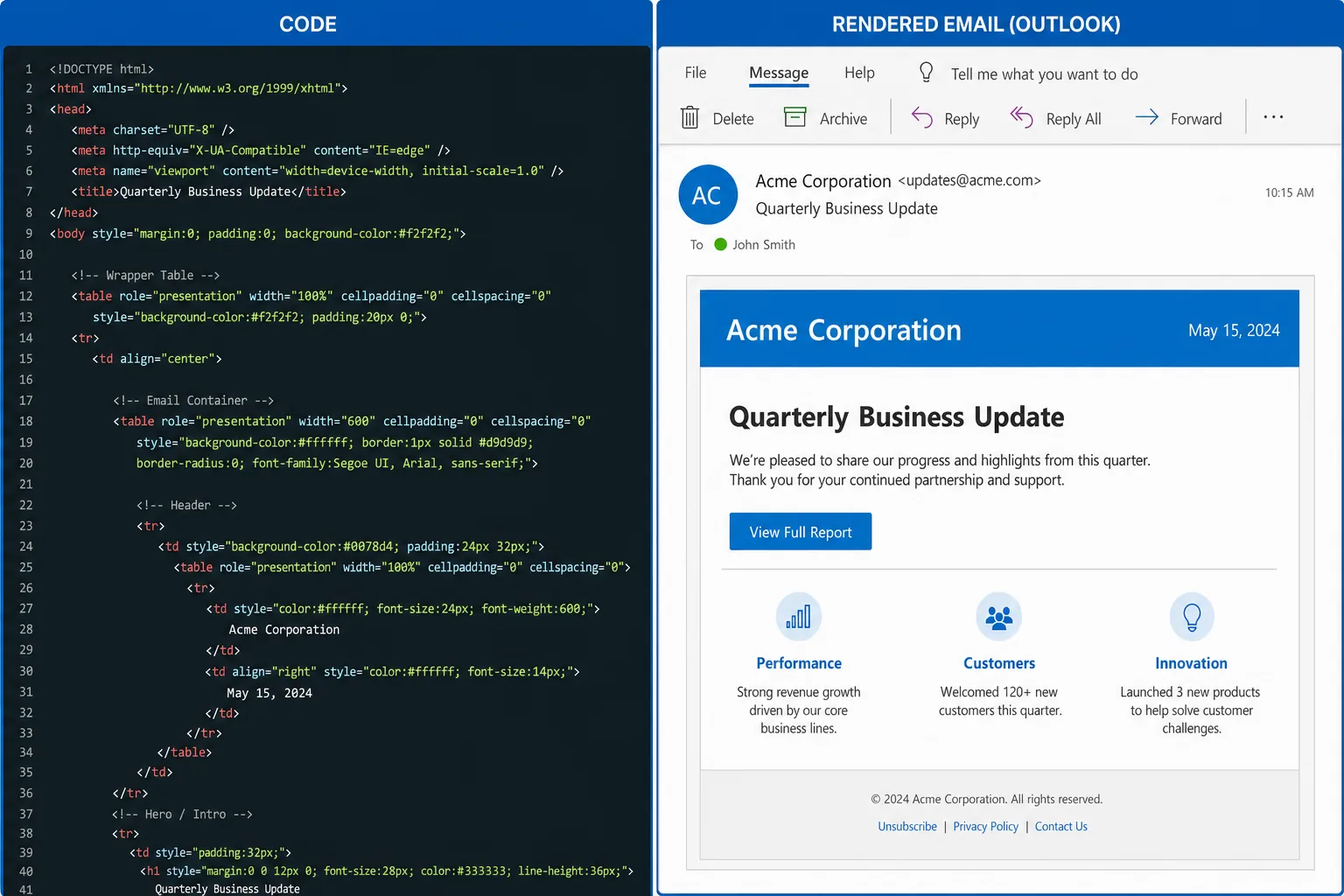
Choosing an outlook html email template is less about finding the most visually impressive design and more about finding a structure that survives Outlook’s rendering rules. For email marketers, CRM teams, lifecycle marketers, and email designers, Outlook remains one of the most demanding environments to support because it does not behave like Gmail, Apple Mail, or many mobile clients.
A template that looks polished in a browser preview can still fail in Outlook desktop: columns may collapse unpredictably, buttons may lose padding, background images may disappear, fonts may shift, and spacing can look uneven. The best Outlook-compatible templates are not accidental. They are built with tables, inline CSS, conservative layout choices, VML where needed, and a testing workflow that catches rendering differences before a campaign reaches subscribers.
See also: cold email template
This guide explains what to look for when selecting or building an Outlook-safe HTML email template, how to evaluate common design patterns, and how to test templates before deployment. It is written for teams that need repeatable email production, not one-off design experiments.
Why Outlook breaks “good” email design
Outlook is difficult because several versions of Outlook do not use the same rendering approach as modern webmail clients. Many desktop versions rely on Microsoft Word’s rendering engine for HTML email. That matters because Word was not designed to interpret email layouts the way a browser does. As a result, CSS that works in Gmail or Apple Mail may be ignored, partially supported, or interpreted differently in Outlook desktop.
The most common symptoms include inconsistent padding, unexpected gaps between sections, distorted buttons, missing background images, broken rounded corners, font substitutions, and image scaling problems. Even simple design decisions, such as using CSS margins or relying on div-based layout, can introduce rendering issues in Outlook.
Outlook web and Outlook desktop should also be treated as different environments. Outlook on the web generally behaves more like a browser-based email client, while Outlook desktop can require older email coding techniques. A dependable template needs to account for both without creating separate designs for every campaign.
For JQRD’s audience of campaign and lifecycle teams, the practical issue is not whether Outlook is technically behind other clients. The issue is production risk. If a promotional email, onboarding message, billing notice, or newsletter renders poorly for a meaningful portion of the audience, the campaign can lose clarity and credibility. In lifecycle programs, a broken call-to-action or unreadable layout can affect conversion, support load, and user trust.
An Outlook-safe template should therefore be judged by practical criteria:
- Predictable layout: The structure should hold across Outlook desktop, Outlook web, Gmail, Apple Mail, and major mobile clients.
- Readable typography: Font choices should degrade gracefully when custom fonts are not supported.
- Reliable CTAs: Buttons should remain visible, clickable, and legible even when advanced CSS is ignored.
- Fallback-safe imagery: Designs should still communicate the message if background images or remote images are blocked.
- Maintainable code: Marketers and email developers should be able to edit modules without breaking the layout.
What an Outlook-compatible HTML email template must include
A strong outlook html email template starts with a structure that respects the limitations of email clients. The safest foundation is still a table-based layout. While modern web design has moved away from tables for page layout, HTML email remains a different environment. Tables provide a level of layout consistency that div-based designs often cannot guarantee across Outlook desktop versions.
The core container should usually be a fixed-width or max-width email wrapper, commonly around 600 pixels wide for marketing emails. Inside that container, content blocks should be organized as table rows and cells. This allows the template to maintain alignment, spacing, and hierarchy even when modern CSS layout properties are not supported.
Hybrid or fluid responsiveness is also important. Instead of relying only on media queries, which may not be honored everywhere, hybrid email design uses percentage widths, max-width behavior, and table structures to create layouts that adapt more safely. For example, a two-column product section can be coded so columns stack on smaller screens while still appearing stable in Outlook desktop.
Inline CSS discipline is another non-negotiable requirement. Many email clients strip or alter styles in the head of the document. A reliable template places essential styles directly on the HTML elements that need them. This includes font sizes, line heights, colors, alignment, padding, and background colors. Centralized CSS can still be useful during development, but production email HTML should preserve critical inline styling.
Typography should be conservative. Web fonts may not work consistently in Outlook, so templates should use safe font stacks. Common choices include Arial, Helvetica, Georgia, Times New Roman, and system-style fallbacks. If a brand requires a custom font, the template should define fallback fonts that keep the layout from expanding or collapsing when the custom font is unavailable.
Spacing should be built with Outlook in mind. CSS margin is less reliable than table cell padding. A good template uses padding on table cells, spacer rows where necessary, and line-height values that are explicitly declared. It avoids relying on empty divs, unsupported CSS shorthand, or margin-based vertical rhythm.
Before adopting a template, marketers and designers should inspect these elements:
- Outer wrapper: Is there a stable table-based container?
- Content modules: Are hero sections, text blocks, CTAs, product grids, and footers built as reusable blocks?
- Mobile behavior: Does the layout stack cleanly without depending entirely on media queries?
- CTA code: Are buttons built to remain clickable and styled in Outlook?
- Image handling: Are width and height attributes set where appropriate?
- Text fallbacks: Does the message still work if images are blocked?
- Footer compliance: Is there room for unsubscribe, preference, address, and legal content without layout damage?
VML, background images, and the Outlook-specific fixes that matter
VML, or Vector Markup Language, is one of the most important Outlook-specific techniques in email development. It is commonly used to support background images and bulletproof buttons in Outlook desktop versions that do not render CSS backgrounds or border-radius as expected.
Background images are a common source of Outlook problems. A hero section may look excellent in Apple Mail, but Outlook desktop may ignore the CSS background image entirely. If the headline text is white and the fallback background is also light, the message can become unreadable. A well-coded template solves this by pairing the background image with a solid fallback color and, when necessary, VML code that allows the image to display in Outlook.
VML should be used strategically, not everywhere. It is most valuable when the design depends on a background image behind live text or when a branded hero section must remain visually consistent. If the image is decorative, it may be better to simplify the section and rely on a solid background color. Outlook-safe email design often means knowing which visual effects are worth preserving and which should be simplified for reliability.
Buttons require similar discipline. Many modern email buttons are styled links with padding, border-radius, and background color. In Outlook desktop, padding on links may not behave as expected, causing the button to shrink around the text or lose its visual weight. A bulletproof button pattern uses table cells and, in some cases, VML to preserve button dimensions and clickability.
Common Outlook quirks and practical fixes include:
- Padding inconsistencies: Use table cell padding instead of relying only on padding applied to links or divs.
- Line-height issues: Set line-height explicitly and avoid overly tight typography that can clip in Outlook.
- Ghost buttons: Use table-based or VML-supported button structures so CTA backgrounds do not disappear.
- Image scaling problems: Define image widths clearly, avoid unsupported CSS-only sizing, and test retina assets carefully.
- Background image failures: Add fallback background colors and VML where the design requires live text over an image.
- Unexpected gaps: Remove unnecessary whitespace around table cells and avoid relying on margin for vertical spacing.
Graceful degradation is the principle that keeps Outlook fixes manageable. A template does not need every client to display every enhancement identically. It does need every client to deliver a clear, readable, clickable message. If rounded corners become square in Outlook, that may be acceptable. If the CTA disappears, it is not.
Leave room here for one authoritative citation on Outlook rendering behavior, email client market share, or Microsoft’s email rendering limitations.
How to evaluate and choose the best HTML email templates for Outlook
When reviewing a prebuilt template or commissioning a custom one, start by looking beyond the preview image. A beautiful template thumbnail tells you very little about Outlook compatibility. The real quality is in the code structure, fallback decisions, module system, and testing history.
First, evaluate modularity. A strong template should include repeatable sections that marketers can combine without reengineering the email each time. Typical modules include a hero, intro copy, single-column content block, two-column feature block, product row, testimonial, CTA band, divider, footer, and legal text area. Modular design is especially useful for CRM and lifecycle teams because it supports faster production while reducing the chance of code errors.
For more context, Nielsen Norman Group offers additional background on this topic.
Second, check whether modules are editable without breaking the layout. If swapping a headline from one line to three lines causes the hero to collapse, the template is too fragile. If adding a longer product name breaks a two-column grid, the content model needs adjustment. Outlook-safe templates should tolerate realistic marketing copy, not only perfect placeholder text.
See also: welcome email examples
Third, assess accessibility. Outlook compatibility should not come at the expense of readable, inclusive design. Templates should support logical heading hierarchy, sufficient color contrast, live text instead of image-only messaging, meaningful alt text, and clear link styling. Buttons should be large enough to tap, and the email should remain understandable when images are blocked.
Fourth, evaluate responsive behavior. A template should not simply shrink a desktop design onto a mobile screen. Look for patterns that stack cleanly, preserve CTA prominence, and avoid tiny multi-column text. Hybrid responsive layouts are often safer than designs that depend only on CSS media queries.
Fifth, review the image-to-text balance. Outlook users may have images disabled, and many subscribers skim quickly. If the main offer, date, price, or action exists only in an image, the template is risky. Use live HTML text for essential messaging and reserve images for support, context, and visual appeal.
Sixth, confirm compatibility with your email service provider workflow. Templates should work with merge tags, personalization fields, conditional content, dynamic product blocks, and unsubscribe variables used by your ESP or marketing automation platform. A template that renders well in a static file can still fail when content is injected dynamically.
Practical Outlook template selection checklist
- Uses table-based layout for structural sections.
- Includes inline CSS for critical styling.
- Defines fallback fonts and fallback background colors.
- Uses bulletproof CTA patterns.
- Supports VML where background images are essential.
- Maintains readable live text when images are blocked.
- Stacks cleanly on mobile clients.
- Allows content edits without breaking modules.
- Includes accessible color contrast and alt text support.
- Has been tested in Outlook desktop and Outlook web, not only browser previews.
For JQRD readers, the best template is not always the most customizable one. Excessive customization can create inconsistency and slow QA. The better choice is usually a flexible but constrained system: enough modules to support common campaigns, with guardrails that keep design and rendering predictable.
Testing workflow: from local checks to inbox rendering validation
Outlook compatibility cannot be confirmed by visual inspection alone. A repeatable testing workflow is essential, especially for teams sending recurring campaigns, onboarding sequences, sales-assisted nurture emails, newsletters, or transactional messages.
Start with a preflight code review. Check that the template uses tables for layout, inline styles for essential presentation, declared image dimensions, valid alt attributes, fallback colors, and bulletproof buttons. Remove unnecessary code introduced by visual editors. Confirm that merge tags and dynamic variables will not create broken links or empty content blocks.
Next, test the template with real content. Placeholder copy is usually too neat. Add long subject-adjacent headlines, realistic product names, multiple paragraph lengths, legal disclaimers, and edge-case personalization values. A template that survives real copy is far more valuable than one that only works in a design mockup.
Then run seed tests across the Outlook environments that matter to your audience. This should include Outlook desktop versions where possible, Outlook on the web, and Outlook mobile if it is relevant to the list. Compare these results with Gmail, Apple Mail, and major mobile clients so the team can separate Outlook-specific issues from broader email rendering problems.
QA should be visual and functional. Do not only ask, “Does it look close?” Ask whether the email is readable, clickable, and aligned with the campaign objective. Check the hero section, CTAs, product blocks, footer, dark mode behavior, line breaks, bullets, spacing between modules, and link tracking. If a CTA appears correct but has a small clickable area, it still needs work.
A practical QA checklist should include:
- Layout: Are sections aligned, centered, and free of unexpected gaps?
- Typography: Are fonts, line heights, and paragraph spacing readable?
- Buttons: Are CTAs visible, correctly styled, and fully clickable?
- Images: Are images scaled correctly, and does alt text appear when images are blocked?
- Mobile: Do columns stack cleanly and preserve content order?
- Dark mode: Are text and background combinations still legible?
- Personalization: Do merge fields render correctly and avoid awkward blank spaces?
- Footer: Are unsubscribe and compliance elements intact?
Document every issue and fix. Over time, this creates a rendering knowledge base for the team. If Outlook desktop consistently mishandles a specific module, either revise the module or remove it from the approved library. The goal is to reduce last-minute campaign risk by making compatibility part of the design system, not a final emergency step.
Recommended template patterns for campaigns, lifecycle, and newsletters
Different email types need different Outlook-safe patterns. The best template for a short promotional campaign may not be the best choice for an onboarding sequence or editorial newsletter. The common thread is that each pattern should be tested, modular, and restrained enough to render consistently.
For promotional campaigns, use a focused single-column template with a clear hero, concise offer copy, one primary CTA, supporting details, and a fallback-safe footer. This pattern works well in Outlook because it avoids complex columns and keeps attention on the action. If a background image is used in the hero, include a solid fallback color and VML support if the live text depends on that visual.
For lifecycle and onboarding emails, prioritize clarity and modular repetition. A good pattern includes a plain hero or headline area, short instructional copy, one CTA, and optional secondary help content. These emails often need personalization and conditional blocks, so the structure should tolerate missing or variable content. Avoid layouts that depend on every module being present.
For transactional emails, choose a highly conservative template. Receipts, confirmations, password resets, alerts, and account notices should use live text, simple tables, strong contrast, and minimal decoration. Outlook compatibility is especially important here because the subscriber is looking for specific information. Decorative complexity should not interfere with the message.
For editorial newsletters, use a modular stacked layout. A top story section, secondary article blocks, short summaries, and text-based links are usually safer than dense multi-column grids. If you use two-column sections, test them carefully in Outlook desktop and ensure they stack predictably on smaller screens. Editorial emails should also maintain a strong text hierarchy so readers can scan without relying on images.
For product or ecommerce-style messages, use table-based product cards with clear image dimensions, short product names, live pricing text, and individual CTAs where appropriate. Avoid squeezing too many products into one row. A two-column desktop pattern that stacks on mobile is often safer than a three- or four-column grid, especially when product names vary in length.
The design trade-off is straightforward: the more ambitious the layout, the more testing and Outlook-specific code it requires. Teams with limited QA capacity should choose simpler templates. Teams with dedicated email development support can use richer layouts, but only if those modules are tested and documented.
The most dependable Outlook-compatible email systems are not built from one perfect template. They are built from a small library of proven modules: a safe hero, a safe CTA, a safe two-column block, a safe product card, a safe footer, and a safe text section. Once those blocks are tested, campaign teams can assemble emails faster while maintaining rendering confidence.
Before deployment, review the template against the same standard every time: stable tables, inline CSS, fallback-aware design, accessible live text, Outlook-specific fixes where necessary, and real inbox testing. That is how an Outlook-safe template becomes a repeatable marketing asset rather than a recurring production risk.
See also: email newsletter frequency
Leave a Reply